Cursor: A Practical Introduction
Get started with Cursor, the AI-first code editor. Learn Tab autocomplete, Composer, Agent mode, and rules files to start shipping faster from day one.
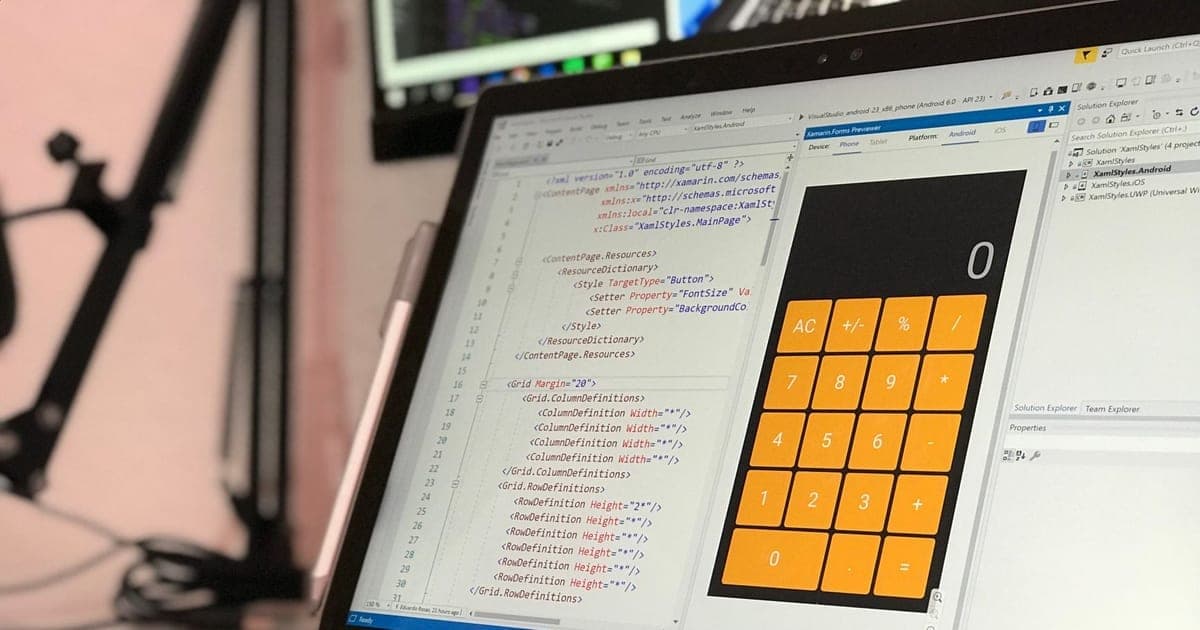
Most AI coding tools are assistants that sit alongside your editor and answer questions. Cursor is different. It's a code editor where the AI is a first-class participant in every action you take: the completions, the refactors, the codebase search, the multi-file edits. That's not a marketing claim; it's a meaningful architectural choice that changes how the tool feels to use.
Cursor is a fork of VS Code, which means your existing extensions, keybindings, and settings import with a single click. But it's been rebuilt from the inside to give the AI model direct access to your project context in ways that a plugin layer never can. If you've tried GitHub Copilot and found it useful but limited, Cursor is the next logical step.
At Laxaar, we've moved several teams to Cursor for day-to-day development. This guide covers what you actually need to know to get productive: not a feature tour, but a practical walkthrough of the decisions that matter.
What you'll learn
- What Cursor is and how it differs from Copilot
- Tab autocomplete: the foundation
- Chat and Composer: conversational editing
- Agent mode: autonomous multi-file tasks
- Rules files: shaping AI behavior for your project
- Getting started: the first hour
- Frequently Asked Questions
What Cursor is and how it differs from Copilot
Cursor is an AI-first code editor built as a fork of VS Code with Tab autocomplete, Composer/Agent mode, and rules files as its core differentiating features. Unlike Copilot, which operates as an extension on top of an existing editor, Cursor integrates AI at the editor level. The AI has access to your project structure, open files, and recent edits in a way that plugin-based tools can't match.
The practical difference: Cursor's completions are context-aware in a broader sense. It knows what you edited three files ago, what functions you just defined, and what patterns your codebase uses. Copilot's context is largely scoped to what's open and what you've recently typed.
Cursor also gives you a model picker. You can use Claude Sonnet, GPT-4o, Gemini, or Cursor's own tab-completion model depending on the task. This flexibility matters: different models are better at different things, and you're not locked into one provider.
It's worth being honest: Cursor isn't perfect. The editor is based on an older VS Code version and occasionally lags behind on upstream VS Code features. Some extensions behave differently. These are real trade-offs, not marketing fine print.
Tab autocomplete: the foundation
Tab autocomplete is Cursor's most-used feature and where most developers start. It works the same way as Copilot's Tab (suggestions appear inline as you type, press Tab to accept) but Cursor's model is trained specifically on code and tuned for multi-line, context-aware completions.
A few things worth knowing about how to get the most from it:
It predicts your next edit, not just your next character. After you accept a completion and make a change, Cursor often predicts where you'll edit next and pre-populates that location. This "next edit prediction" is one of its more useful behaviors on repetitive tasks like updating all call sites after changing a function signature.
It learns your patterns within the session. If you consistently write a certain kind of error handling or always use a specific import pattern, completions for similar code later in the session will reflect that. This isn't persistent across sessions, but it's more session-aware than Copilot.
Adjust the suggestion aggressiveness. In Settings > Cursor, you can configure how eager the completions are. Aggressive mode suggests more frequently; conservative mode only fires when confidence is high. Teams that find the suggestions distracting usually need to tune this setting.
// Example: Cursor predicts the next edit after changing a function signature
// Before:
function fetchUser(id: string): Promise<User> {
  return api.get(`/users/${id}`);
}

// After changing to accept options:
function fetchUser(id: string, options?: FetchOptions): Promise<User> {
  return api.get(`/users/${id}`, options);
}

// Cursor will often auto-complete the call sites when you navigate to them:
const user = await fetchUser(userId, { includeDeleted: false });
//                                   ^^^^^^^^^^^^^^^^^^^^^^^^^^^^
//                                   predicted and pre-filled
Chat and Composer: conversational editing
Cursor has two conversational modes: Chat and Composer.
Chat (Cmd+L on Mac) opens a sidebar conversation where you can ask questions about your codebase, get explanations, or request edits. You can reference specific files with @filename or tag the whole codebase with @codebase. Chat is best for questions, explanations, and targeted single-file edits.
Composer (Cmd+I) is the multi-file editing interface. You describe what you want to build or change, and Composer generates edits across multiple files simultaneously, showing you a diff before applying anything. This is where Cursor becomes genuinely powerful for tasks like "add a new API endpoint with tests" or "refactor this module to use the repository pattern."
The workflow in Composer is:
- Open Composer with
Cmd+I - Describe the task in plain English
- Review the proposed diff across all affected files
- Accept all, reject all, or accept file-by-file
# Example Composer prompt that works well:
"Add a /health endpoint to the Express app in src/app.ts that returns
{ status: 'ok', version: process.env.APP_VERSION } and write a Jest test
for it in src/__tests__/health.test.ts. Use the same middleware stack as
the existing routes."
The quality of Composer output is directly tied to how well you specify the task. Vague prompts produce vague code. Specific prompts (naming files, referencing existing patterns, specifying what tests to write) produce code that's much closer to what you'd write yourself.
Agent mode: autonomous multi-file tasks
Agent mode extends Composer with terminal access. The agent can run shell commands, execute tests, read command output, and iterate on its own edits until the task succeeds. It's the closest thing to Claude Code's workflow inside an editor.
You enable Agent mode in the Composer dropdown. Once active, the agent will:
- Read files it needs without you having to specify them
- Run
npm testorpytestafter making changes - Fix test failures it introduced
- Execute commands like database migrations if the task requires it
This is genuinely useful for tasks where the success criterion is checkable: "all tests pass," "the server starts without errors," "the linter is clean." The agent loops until it hits that criterion or runs out of attempts.
Agent mode requires more trust than Composer because it executes commands on your machine. Cursor asks for confirmation before running terminal commands by default, and you can set it to always-confirm or auto-approve for specific command patterns. For most developer workstations, auto-approval for npm test and git diff is reasonable; auto-approval for rm or database commands is not.
# Agent mode handles this class of task well:
"The TypeScript compiler is failing on src/lib/auth.ts with a type error
on line 42. Fix it, run tsc --noEmit to verify, and if any other files
need updating to match, update those too."

# Agent will:
# 1. Read auth.ts
# 2. Identify the type error
# 3. Fix it
# 4. Run: npx tsc --noEmit
# 5. Fix any additional errors surfaced by the check
# 6. Confirm all clear
Rules files: shaping AI behavior for your project
Rules files are one of Cursor's most underused features. A .cursor/rules directory at your project root contains .mdc files that give the AI standing instructions for your codebase: coding conventions, architecture patterns, libraries to prefer, things to avoid.
.cursor/
  rules/
    typescript.mdc
    react.mdc
    testing.mdc
Each rules file is a plain markdown file with optional metadata:
---
description: TypeScript conventions for this project
globs: ["**/*.ts", "**/*.tsx"]
alwaysApply: true
---

## TypeScript conventions

- Use `type` for object shapes, `interface` only for public API contracts
- Never use `any`; use `unknown` and narrow explicitly
- All async functions must have explicit return types
- Prefer `const` over `let`; avoid `var` entirely
- Error handling: always use the `Result<T, E>` type from src/lib/result.ts
When a rule file's globs match the file being edited, its contents are included in the AI's context automatically. The result is that Composer and Agent mode write code that matches your codebase conventions without you having to repeat them in every prompt.
Laxaar's standard recommendation: create rules files on day one of a new project, before AI-generated code accumulates. Retrofitting conventions after the fact is significantly harder than establishing them upfront.
Getting started: the first hour
Here's the practical sequence for a new Cursor install:
-
Download and install from cursor.com. On first launch, import your VS Code settings; extensions, keybindings, and everything else transfers.
-
Open your project and let Cursor index it. This takes 1–5 minutes for most projects. The indexing is what enables
@codebasereferences and accurate completions. -
Try Tab completions on a familiar piece of code to calibrate your expectations. Write the start of a function you know well and see how closely the suggestion matches what you'd write.
-
Run your first Composer task. Pick something small and well-defined, like "add a unit test for this function" or "add a JSDoc comment to this class." Review the diff carefully.
-
Create your first rules file. Even a 10-line file capturing your main conventions will visibly improve Composer output.
-
Evaluate Agent mode on a task with a clear success criterion, like a failing test to fix or a linter error to resolve.
The learning curve is shallow for the basics and steeper for getting high-quality output from Composer and Agent. The teams at Laxaar who get the most value from Cursor are the ones who invest in good rules files and learn to write precise Composer prompts.
For teams moving to Cursor at scale, see our Cursor best practices for teams post, which covers shared rules, model selection policies, and cost management. Our AI automation expertise is also relevant if you're thinking about how Cursor fits into a broader automated development workflow.
Frequently Asked Questions
Is Cursor safe to use with proprietary code?
Cursor sends code to AI model providers (Anthropic, OpenAI, Google depending on which model you select) for completions and chat responses. Cursor offers a "Privacy Mode" that disables code telemetry and training on your code, and their business plan includes data processing agreements. For most commercial projects, Privacy Mode plus a Cursor Business subscription covers the basics. For heavily regulated environments (financial, healthcare, government), review their DPA and consult your legal team before adopting.
Does Cursor work with every programming language?
Cursor works with any language VS Code supports, which covers essentially everything. The quality of AI assistance is better for languages with large training sets (TypeScript, Python, Go, Rust, Java) and noticeably weaker for niche or domain-specific languages. Tab completions work everywhere; Composer output quality varies by language.
How much does Cursor cost?
As of 2025, Cursor offers a free tier (limited completions), a Pro plan at $20/month (unlimited completions, access to premium models), and a Business plan at $40/user/month (SSO, admin controls, enforced privacy mode, usage analytics). Model costs (for API calls to Claude, GPT-4o, etc.) are included in these plans up to usage limits; very heavy users may see overage charges.
Can I use Cursor with my existing VS Code extensions?
Yes. Cursor imports your VS Code profile on first launch, including extensions. The vast majority of extensions work without modification. A small number of extensions that hook deeply into VS Code's internals may behave differently or not work at all, since Cursor is based on a slightly older VS Code fork. Check the Cursor forum for known incompatibilities before committing to a migration.
How does Cursor compare to Claude Code?
They solve different problems. Cursor is a full IDE replacement with AI built in; you work in it all day. Claude Code is a terminal agent you invoke for specific autonomous tasks. Many developers use both: Cursor for the IDE experience and inline completions, Claude Code for heavy autonomous tasks like "implement this feature end-to-end." See our Claude Code vs Cursor comparison for a detailed breakdown.
What models does Cursor use?
Cursor lets you choose. As of mid-2025, the available models include Claude Sonnet and Opus (Anthropic), GPT-4o and o3-mini (OpenAI), and Gemini models (Google). Cursor's proprietary Tab completion model is a smaller, faster model optimized for inline suggestions. Most teams use Claude Sonnet for Composer and Chat (strong at code, good context handling) and Cursor's native model for Tab (faster, lower latency).
Ready to move your team to Cursor and need help with the rollout? Talk to Laxaar. We've handled the setup, rules file design, and workflow integration for multiple engineering teams.
Working on something like this?
Get a fixed scope, timeline, and price within one business day — no obligation.